
4 apps for recording and editing your video lessons
Finding apps for recording and editing videos online is easy, but choosing the best tool for your project is difficult, given the many options available today.
Since we’ve been in the eLearning market for quite some time, we decided to contribute to those looking for apps to record their classes.
We’ve gathered four options (plus a bonus!) used and approved by our creators, along with their pros and cons, so you can decide which best suits your needs. Let’s go!

Apps for recording: 4 options for recording and editing video lessons
Creating an online course with video lessons it’s the best way to attract students, since video is the favorite media format for the vast majority of people.
This doesn’t mean your classes need to consist of you speaking directly to the camera 100% of the time; there are better—and more suitable—ways to create video lessons.
Something we always encourage is using different types of media to make teaching more interesting.
You can intersperse parts of the video where you are speaking with graphics, presentations, drawings, tutorials, etc.
Think about what you can use to better explain the content, making your lesson more engaging and dynamic.
In short, create a script with your entire lesson organized, practice, develop the necessary supplementary materials, and then start recording.
Fortunately, nowadays there are many apps for recording videos, presentations, tutorials, and demonstrations directly from your computer or mobile phone.
Depending on the tool chosen, it is possible to record screen, webcam, and audio, edit the material, add captions, insert graphic elements, and even use artificial intelligence features.
In this article, we have selected 4 apps for recording and editing video lessons: Camtasia, ScreenPal, OBS Studio e Descript.
– How to create better video lessons for your online course
1. Camtasia
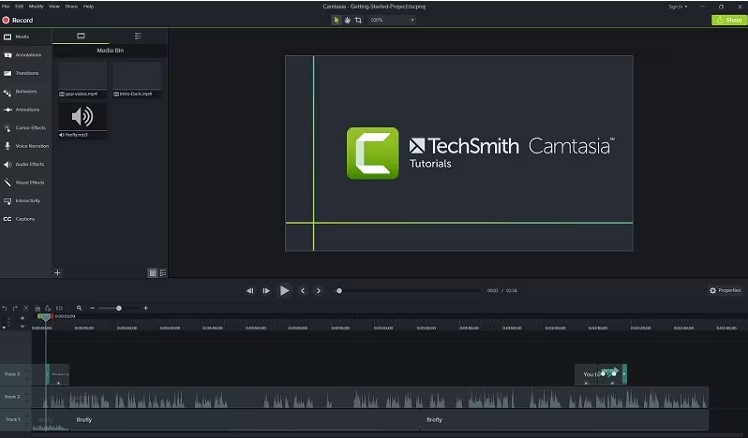
Camtasia is a complete solution for screen recording and video editing especially suitable for tutorials, presentations, demonstrations and educational content.
The software allows you to record the screen, webcam, microphone, and system audio.
After recording, you can edit the material, adding text, animations, transitions, highlights, and other visual elements.
Current versions also offer resources based on artificial intelligence, including transcription, captions, text-based editing, audio cleanup, and background removal.
Key features
- Record screen, webcam, microphone, and system audio;
- Allows you to record the screen in high resolution;
- It offers multi-track video and audio editing;
- It includes transitions, animations, titles, and calls to action.
- Allows you to create captions;
- It offers AI features for editing and enhancement;
- Allows you to highlight mouse movements.
Advantages
- A very complete solution for recording and editing;
- Custom video sizes (such as vertical videos simulating smartphone footage);
- Especially suitable for online courses;
- Relatively intuitive interface;
- Wide variety of editing features.
Disadvantages
- Some advanced features are only available on paid plans;
- Not so great in terms of audio editing and filtering;
- It may be more comprehensive than necessary for simple recordings.
Free trial available.
Available for Windows and Mac: Camtasia, by TechSmith
– 8 AI tools for video creation
2. OBS Studio
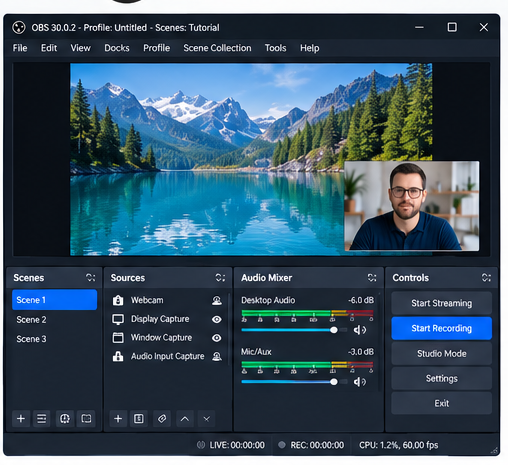
The preferred solution for most creators, OBS Studio is a free and open source program for video recording and live streaming.
Among the apps for recording videos currently available, it stands out for the number of configuration possibilities.
It is possible to combine webcam, presentations, browser, images, programs, and other sources into a single recording.
OBS uses a scene system that allows you to create different layouts and switch between them during the recording.
Key features
- Records video and audio;
- Captures the screen and different windows;
- Possible to configure for multi-screen (2nd, 3rd monitors);
- Multi-window (full-screen applications, windowed applications);
- Recording with multiple external cameras (DSLR and webcam);
- It is possible to mix multiple audio sources (desktop audio, USB microphones, etc.).
- It includes a mixer and audio filters;
- It supports plugins;
- It can be used for recordings and live broadcasts.
Advantages
- Free;
- Open source;
- Highly customizable;
- It has a good community for support and tutorials;
- It offers advanced recording features.
Disadvantages
- It has a steeper learning curve;
- It’s not a complete video editing solution.
Free and open source.
Available for Windows, Mac, and Linux: OBS Studio
– Advantages of live streaming your classes
3. ScreenPal
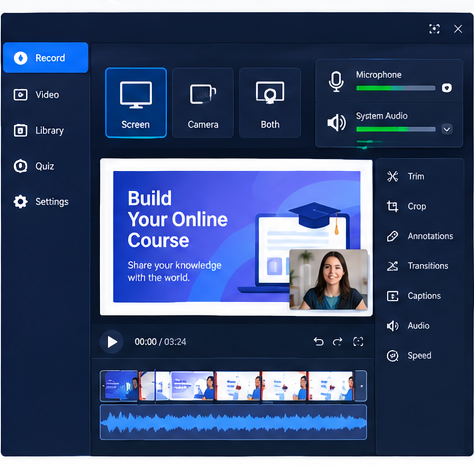
Former Screencast-O-Matic, ScreenPal is a simplest and most economical option which combines screen recording, webcam, video editing and sharing.
This is an interesting solution for those looking for apps for recording online classes that don’t wish to work with an overly complex tool.
It is possible to record the screen, the webcam, or both simultaneously, add narration, and edit the result with features such as cutting, text, annotations, transitions, and other elements.
The tool also offers captioning, transcription, and artificial intelligence features.
Key features
- Records the screen, webcam, or both;
- Audio capture and narration;
- Allows you to add text, shapes, and highlights;
- It offers editing tools;
- It allows you to create captions and transcripts;
- It offers hosting and sharing;
- It features AI capabilities.
Advantages
- Easy to use;
- Great for tutorials, training, presentations, lectures, demonstrations and instructional content;
- Sharing recordings with just a link or file download;
- It brings recording and editing together on a single platform.
Disadvantages
- The free version has limitations;
- Audio editing is quite limited;
- Some advanced features require a subscription.
Free version available.
Available for Windows, Mac, Chromebook, iOS, and Android: ScreenPal
– Recording tutorial videos: tips for achieving the best results
4. Descript
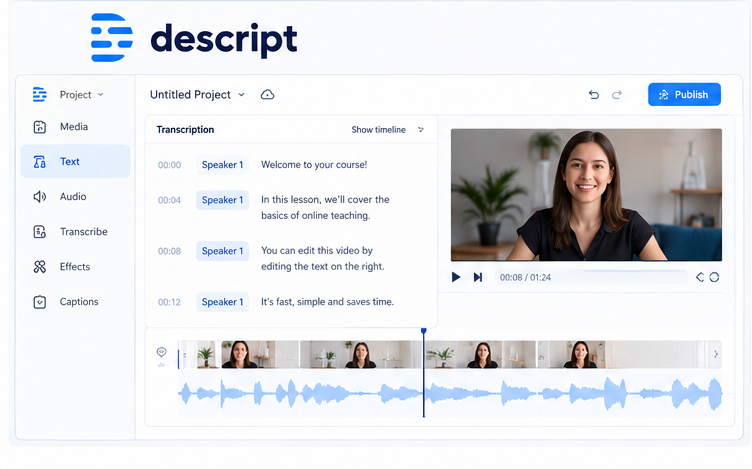
Descript combines video recording and editing with a text-based approach.
After recording a lesson, the tool generates a transcript. From there, you can edit the video as if you were editing a document. When you delete a part of the text, for example, the corresponding section is also removed from the recording.
This feature can be quite useful for teachers and course creators who need to edit long lessons and remove errors, pauses, or unnecessary sections.
The software is also widely used by podcasters, YouTubers, and marketing teams who need to publish content quickly.
Key features
- Record screen, webcam and microphone;
- It generates transcripts automatically;
- Allows you to edit videos from text;
- It offers AI tools;
- It offers audio enhancement features;
- Allows you to create captions;
- It facilitates the production of tutorials and video lessons.
Advantages
- It combines recording and editing;
- Text-based editing can save time;
- Useful for those who work with screenplays;
Disadvantages
- Some advanced features require a payment;
- Complex pricing system (credit system);
- This may require some adaptation for those accustomed to traditional editors.
Free plan available.
Available for desktop: Descript
– How to record and release a video podcast
BONUS: DaVinci Resolve
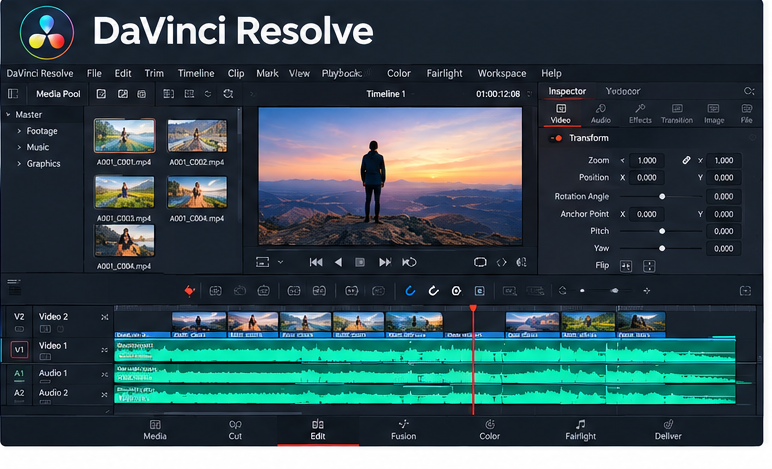
It didn’t make the official list, but it certainly deserves an honorable mention!
DaVinci Resolve is a professional platform that brings together video editing, color correction, visual effects, motion graphics, and audio post-production.
Although it is widely used in professional productions, it can also be an option for course creators who want more control over the outcome of their video lessons.
The free version already offers a large number of tools, while DaVinci Resolve Studio (paid version) adds professional features and additional AI functionalities.
Key features
- Professional video editing;
- Audio editing and mixing;
- Color correction and grading;
- Visual effects;
- Motion graphics;
- Multicamera editing;
- Titles, transitions, and animations;
- AI tools;
- Support for different formats and resolutions.
Advantages
- A fairly complete free version;
- Professional resources;
- Great control over image, color, and audio;
- It brings together various stages of production into a single program;
- You can follow the creator’s evolution.
Disadvantages
- It has a steeper learning curve;
- It may require a more powerful computer;
- It offers many features that may be unnecessary for those who only need to record simple lessons.
Free version available.
Available for Windows, Mac, and Linux: DaVinci Resolve
– 5 Tips to Make Editing Your Video Easier
Which of these apps for recording classes should I choose?

The choice between the different 23depend mainly on the type of content you intend to produce and your needs.
If you are looking for a complete solution for recording and editing video lessons, Camtasia might be the most suitable option.
For those who prefer a simpler tool for recording classes, tutorials, and training sessions, ScreenPal can be an interesting alternative.
OBS Studio, on the other hand, is recommended for those looking for a robust, free, and highly customizable program.
If the priority is to make editing faster, Descript and its transcript-based editing deserve a try.
Finally, DaVinci Resolve is an alternative for those who want greater control over editing and a more professional result.
The truth is that there is no single app that is ideal for all course creators.
Before choosing, consider the format of your classes and your level of experience with video production.
If you intend to record presentations and explain concepts, for example, screen capture tools may be sufficient.
For classes where you demonstrate how a software works, screen recording and webcam features are more suitable.
Also pay attention to the audio quality. A simple video with clear audio and a well-structured explanation can be much more enjoyable to watch than a production full of special effects but with poor sound.
Another important point is editing. If you plan to produce many lessons, choosing a tool that facilitates cuts, corrections, subtitles, and audio adjustments can save a lot of time during course creation.
What to do? Try a few apps for recording before deciding which one to delve into.
Then, with the videos ready, all you have to do is choose which platform to host them on to make them available to your students.
Elearning platform (LMS), Coursify.me has all the necessary features for you to import and integrate content from video hosting platforms such as Vimeo and YouTube.
– What is a Learning Management System
Instructors can embed their hosted videos into any of these channels on their page on Coursify.me, leaving their lessons even better and more complete.
Visit our website and take advantage of all the features of our platform to create and sell quality online courses.